How to Make a Christmas Video with Pictures: 5 Ideas
 VideoPudding Team
How to make a Christmas video with pictures: five easy ideas that turn one or two family photos into a Christmas greeting video, with music and text tips.
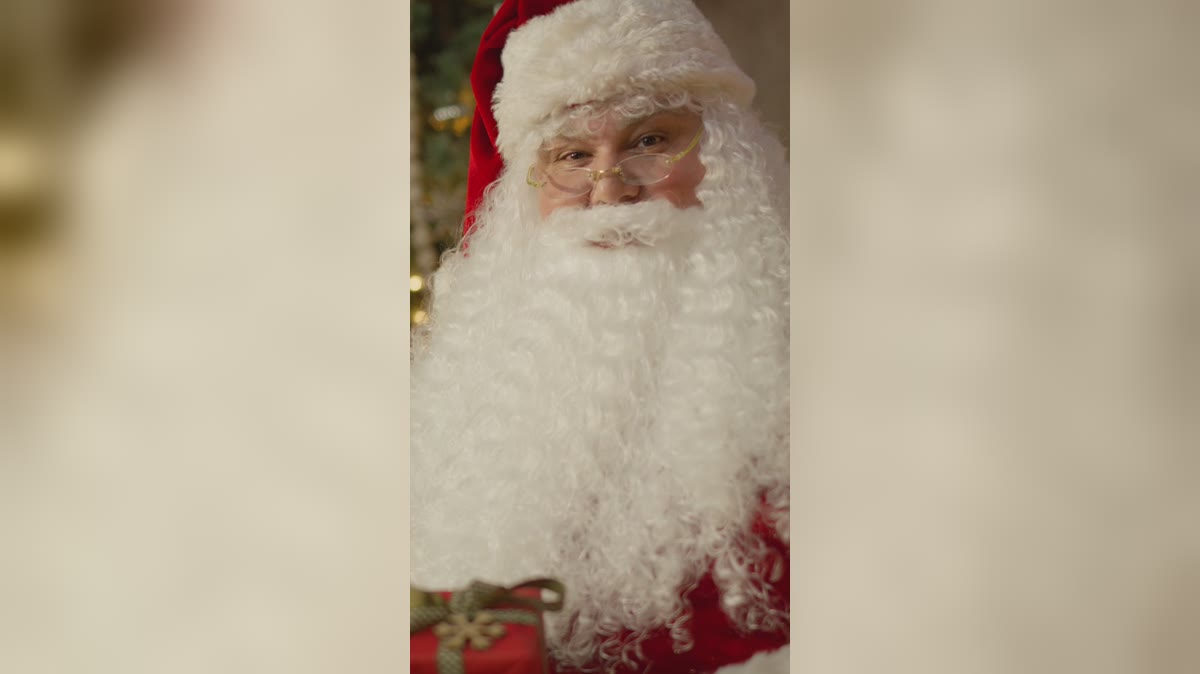
A Christmas video with photos is the easiest holiday greeting to make: you already have the pictures, and a few minutes turns them into something people want to watch twice. This guide shows how to make a Christmas video with pictures in five different ways, using one or two photos from your camera roll. Each idea has its own steps, and at the end you'll find how to add music and text so the clip feels finished.
What you need
- One or two photos. Most ideas below need a single photo. The hug idea needs two.
- A few minutes. Videos are usually ready in 1 to 3 minutes.
- Credits. Each idea lists its cost in the table further down. New accounts get starter credits, so you can try one before deciding anything.
- A video editor (optional). Any free editor on your phone or computer works for adding names, a greeting line or joining clips together.
Every finished video downloads as an MP4 without a watermark. If a video fails, its credits come back to your account automatically.
How to make a Christmas video with pictures: 5 ideas
Pick the idea that fits the person you're sending it to. You can also make two or three and join them into one longer Christmas card video.
1. A visit from Santa
This one is for kids, or for anyone who still likes a surprise. Santa walks into your photo and hands over a gift.
- Choose a photo of your child (or yourself) in a room with some space around them. A living room by the tree works well.
- Open AI Santa and upload the photo.
- Start the video. It makes a 5 second clip.
- Download the MP4 and send it on Christmas morning.
A photo where the person is facing the camera and fully visible from the waist up gives Santa room to walk in.
2. An instant-film memory
Good for a year-in-review message. The photo develops like an instant print, then comes to life.
- Pick a favorite moment from this year: a trip, a first snow, a family dinner.
- Open Instant Film and upload the photo.
- Start the video and wait for it to finish.
- Make a few of these from different months and join them in an editor for a short "our year" Christmas greeting video.
3. A family hug across the distance
For relatives who can't be home this year. Two people from two separate photos share a hug in one clip.
- Find one photo of each person. They don't need to be from the same place or time.
- Try to match them: two half-body shots with similar light blend better than a close-up next to a full-body photo.
- Open AI Hug and upload one photo in each slot.
- Start the video, then download it and send it to both people.
4. An old family photo for the grandparents
Grandparents often care more about the past than the present. An old wedding photo or a picture of them as young parents, gently animated, can mean more than any card.
- Scan or photograph the old print in good light, flat on a table, so there's no glare.
- Crop out the border and any dust you can.
- Open Old Photo Revival and upload it.
- Start the video. The movement is small and gentle, which suits old photos.
- Play it for them in person if you can.
5. A talking-photo greeting
When you want to say something specific, let the photo say it for you.
- Choose a clear, front-facing photo of yourself with your mouth visible.
- Write a short script, something like: "Merry Christmas, Mum and Dad. I miss you, and I'll see you in January."
- Open Talking Photo, upload the photo, paste the script and pick a voice.
- Start the video and download it when it's done.
Keep the script short. A few warm sentences sound more personal than a long speech.
Add music and text
A greeting feels complete with some sound and a line of text. Two quick steps cover both.
Sound. Upload the finished clip to Add Sound to Video. It adds sound effects and ambience that match what's happening on screen, such as footsteps or a crackling fire. It costs 10 credits per clip. If you want a song as well, add it in your editor.
Text. Video models don't spell names or greeting text reliably. Even a simple "Merry Christmas, Emma" can come out with odd letters. So make the clip without text, then open it in a video editor and add the greeting, the name and the year as a text layer. That also lets you change the wording later without making the video again.
Joining clips. If you made several clips, put them in order in the editor and add a short fade between them. Three or four 5 second clips make a nice length for a message.
Want a snowy scene or a glowing tree as an opening shot? The AI Christmas video generator makes Christmas clips from text, and the prompt library has ideas to start from. Two more one-photo effects fit the season: AI Elf dresses the person as a dancing Christmas elf, and AI Snow Globe pulls back to show the whole photo inside a snow globe.
Which idea needs what
| Idea | Page | Photos needed | Credits |
|---|---|---|---|
| Santa visit | AI Santa | 1 | 100 |
| Instant-film memory | Instant Film | 1 | 100 |
| Family hug | AI Hug | 2 | 100 |
| Old photo for grandparents | Old Photo Revival | 1 | 60 |
| Talking greeting | Talking Photo | 1 | Depends on script length |
| Add sound (any clip) | Add Sound to Video | 0 (uses your clip) | 10 |
How to make a Christmas video with pictures look its best
- Use sharp, well-lit photos. Blurry or dark pictures give soft results. Daylight or warm indoor light near a window both work.
- One clear subject. For the Santa, hug and talking ideas, a single person per photo is easiest for the model to follow.
- Skip heavy filters. Beauty filters and sunglasses make faces harder to animate.
- Leave space in the frame when something needs to move into it, as Santa does.
- Make a couple of versions. Results vary a little each time. If the first one isn't right, try a different photo rather than the same one again.
- Start a few days early. Christmas Eve is busy for everyone, and you'll want time to add music, text and fix anything you don't like. Plan to have your clips ready a few days before you send them.
- Ask first. Only use photos of people who agreed to be in the video. If you want to use a photo of someone else's child, ask a parent before you do.
FAQ
How do I make a Christmas video with pictures if I only have one photo?
Four of the five ideas need just one photo: AI Santa, Instant Film, Old Photo Revival and Talking Photo. Only the hug needs two.
How long does it take?
Each video is usually ready in 1 to 3 minutes. Adding text and music in an editor takes another few minutes.
Will the video have a watermark?
No. Finished videos download as MP4 files without a watermark, so you can post them or send them straight to family.
What happens if a video doesn't work?
If a video fails, its credits are returned automatically. Try a clearer photo, or one where the person is facing the camera, and run it again.
Start your Christmas video
Now you know how to make a Christmas video with pictures: pick one photo, choose the idea that fits the person, then add sound and a greeting in your editor. Start with AI Santa for the kids or Old Photo Revival for the grandparents, and give yourself a few days before Christmas Eve to get it right.